Showing posts with label Computer. Show all posts

How To Delete Annoying Multiple Entries in Boot Screen

0 comments
Suppose you have multiple copies of Windows XP installed in your PC in different drives or installed Windows XP on top of another operating system like Windows 98 or Windows 2000. Now, though you may have removed some or all of the older versions, still the boot screen continues to show the old operating system entries. Isn't it annoying and confusing to remember and select every time the only right option? Don't worry, here is how you can get rid of the problem forever:

1. Load windows and login if required
2. Go to Start menu, click on Run and then type cmd. This open up the command window.
3. Type this command:
bootcfg /delete /id x
where x is the number of the option you want to delete. Say, for example, you want to delete 2nd boot option then you will type bootcfg /delete /id 2 and so on.
4. Now reboot the machine to check that you have only the correct option(s) available.

Note:

* Please be careful in step 3 and don't delete the correct operating system because that will prevent you from booting.
* Repeat step 3 to delete all unnecessary operating system menus.

Read More »

Problem Chargning Your Laptop Battery??

0 comments
  • Is your Laptop showing Plugged in But Not Charging.
  • It can be due two reasons. Either your Battery is dead or It needs a BIOS reset.
  • Try this method to Reset.
 
  • Shutdown Your Laptop
  • Remove the Battery
  • Press the Power Button for 30 - 40 seconds
  • Place your Battery again into the laptop and Switch your Laptop on.
  • Your Laptop Time & Date would have been changed, that means reset was successful.
 
  • And Your Battery will start charging again.
  • If not its time for you to get a new battery and If your Laptop is Under warranty you should go to Service centre as soon as possible.
  • May be you will get New Battery for free :)

Read More »

How Remove Multiple Dial Up Connection which you dont need

0 comments
1. Click on the network icon in the task bar and click on Open Network and Sharing Center

 
2. Click on Change Adapter Settings on Left top Corner of the window
 
 3. You will get the list of all DialUp Connections Presently available on your Windows. Now Just select the unwanted connections and Delete them by Pressing Delete button on your keyboard


Read More »

Check Your PC Rating Based on your PC Config

0 comments
1. Right Click on MyComputer and Click on Properties


2. Now Click on "Windows Experience Index"


3. Finally Click on Run the Assesment. (As i have Checked my Rating already due to that its showing ReRun the assesment)


Read More »

Remove or Add Default Icons (My Computer, recycle Bin, etc)

0 comments
1. Right click on Desktop and select Personalise


2. Now click on Change Desktop Icons on Top left of the window


3. Just put the tick Mark on the Name of the icons which you want and press OK.


Read More »

Disable Permission Popup while Running any exe file in Win7

0 comments
1. Go to Control Panel


2.  Now go to Users Account and Family Safety


3. Now Click on User Accounts


4. Now Click on Change user Account and Control Settings


5. Now just Slide the Bar till bottom (Never Notify) and click ok. (You will get a dialog box asking the permission for last time. Press Yes :))


Read More »

Download Torrent without Torrent Client

0 comments
1. Go to this site and Create a free Account
www.zbigz.com

2. After Signup login to your Account.

3. Download the torrent file which you want to download to your PC

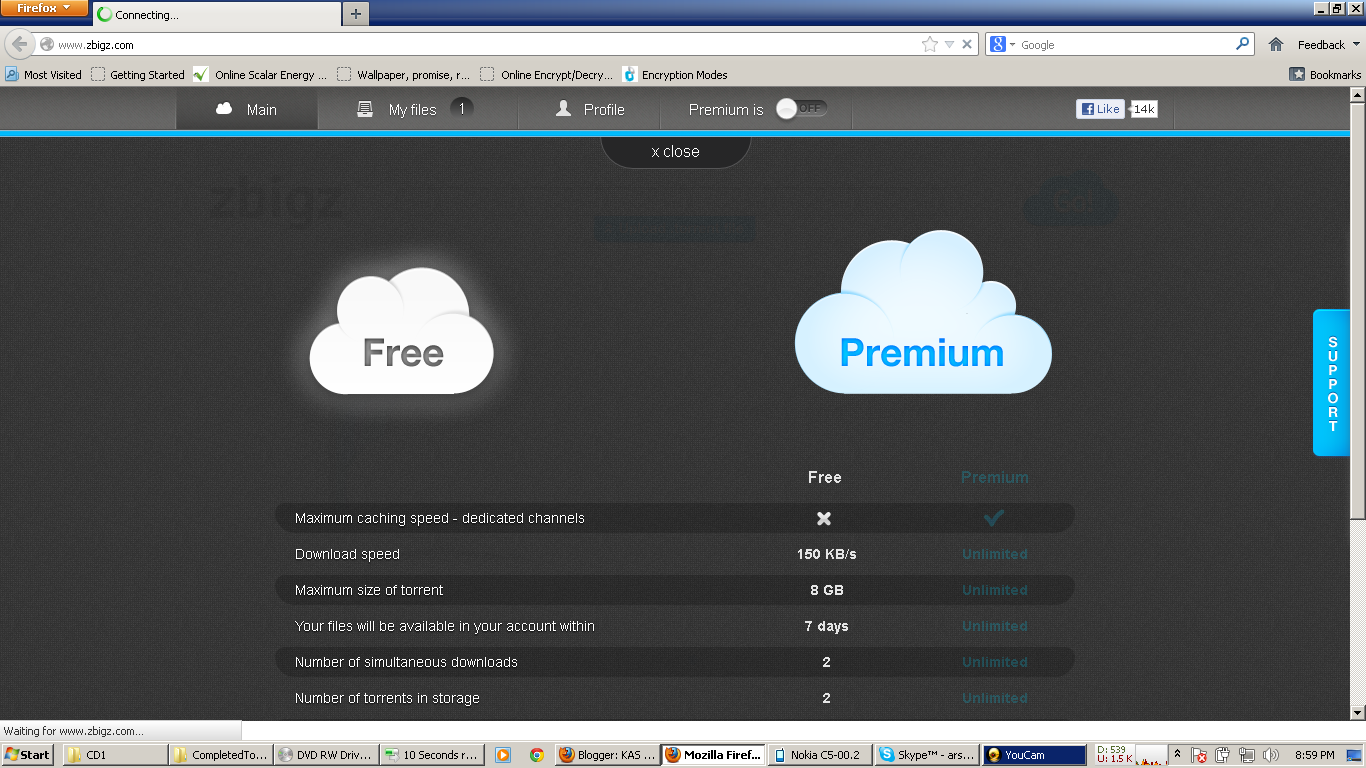
4. Now click on the Upload .torrent file Button as shown in the snap


5. After click that button you will get browse option. Browse to your downloaded torrent and select it

6. Now click on GO

7. You will get window like this.


8. Click on Free

9. Site will start downloading the file to its server.

10. Once the download is complete you will see a download button near your Torrent Name.

11. Just click the download and your torrent will start downloading.

For Any Queries Contact us Here

Read More »

How to Make Unlimited FreeCalls Across the World : Call anyone Worldwide From your PC and MAC

0 comments
The Worlds #1 Free Calls Website
Make unlimited Free Calls World Wide in 40 Countries.Here you can make a Free Call - Free International Calls, Free Mobile Calls, Free Calls UK, Free VoIP Service, Free Calls Online, Free Calls.
Humnut.com
Allows Free calls to landlines In :
Argentina, Australia, Austria,Belgium, Bulgaria, Canada,China, Chile, Colombia, Croatia,Czech Republic, Denmark,Estonia, Finland, France,Germany, Greece, Hong Kong,Hungary, Ireland, Israel, Italy,Japan, Republic of Korea,Luxembourg, Malaysia, Mexico,Netherlands, New Zealand,Norway, Poland, Portugal,Puerto Rico, Singapore, Spain,Sweden, Switzerland, Taiwan,United Kingdom, USA.
Make free Call Using your PC and Mac
Trick How to make free calls using
Register on Humnut.com and You will receive an email from Humnut administrator Validate your account by clicking activate free calls link in your email Now login toyour account and click on Make calls on top
You will see a Java web phone on left side of the screen Wait for 2 min till it connects to service and you can see the phone dial ur number and enjoy free call with great voice quality.

Read More »

How to Schedule Emails In Gmail

0 comments

Gmail, like other mail services, doesn’t give you a scheduling option by default.You need to install a third-party add-on to make scheduling work. Usually, these are browser add-ons (no, they don’t require your browser or PC to be open at the time of sending emails). There are many popular toolsto Schedule Emails in Gmail. But we will use the Best and Most Popular one. However they have free and premium version.
Schedule Emails using Boomerang
Boomerang is a Tool or you can say an Online Application which collaboratewith Gmail and adds a Send Later Button on your Compose Mail page. I highly Recommend to use this Tool. sometimes it will be useful toYou.
*. Download the Extension from Boomerangmail.com
*. Now, Just Log in to YourGmail account normally, and Installed the app by Clicking on the downloaded file.
*. If you are already logged in, Then the appwill be automatically installed
*. Open your Gmail account, and click on Compose New
*. WOW! Now you will see a SEND LATER option next to your Send Button
*. Clicking on the Send Later Button will show you the options to schedule Emails
Done! now you can just write a Message and schedule it using the Send later button and it will be sent on Auto Pilot by your Settings
You can see the options when you Click send later Button in the above Screenshot. you can also input your Custom Time to Send any Particular Email.
Apart from only Schedule Emails , Boomerang also has some additional bonus features, such as email tracking and email reminders which will never let you forget a conversation again.

Read More »

How To Uninstall Babylon Toolbar From Roots and Remove All Traces

2 comments
I guess Babylon Toolbar is hardly installed wishfully. It is either installed by fooling user or enters into system while installing some other software. That’s not a problem; problem is with its removal. It is so stubborn that you just don’t have to uninstall babylon toolbar but also remove all traces to get rid of it.

Bad thing about Babylon is that it cannot be removed easy way like we uninstall other programs from Control Panel.

This is how the Web browser when Babylon toolbar is inside your computer system:
babylon homepage How To Uninstall Babylon Toolbar From Roots and Remove All Traces
As the traditional process of uninstalling, we will go to Control Panel >> Programs and Features and uninstall Babylon Toolbar.
babylon toolbar uninstall How To Uninstall Babylon Toolbar From Roots and Remove All Traces
System uninstall is done so, let’s move on to browsers one by one to remove babylon toolbar.

Remove Babylon Toolbar from Firefox

1. Press CTRL+Shift+A to see installed addons on Firefox.
2. Disable every addon with name “Babylon” in it and then Remove.
babylon firefox addon How To Uninstall Babylon Toolbar From Roots and Remove All Traces
Not all traces are removed because if we look for keyword “babylon” in Firefox configuration, it is still there. So, next step is to remove all entries named “babylon” from Configuration and Preference file of Firefox.
3. Press Win+R >> type %APPDATA% >> Press OK.
4. Navigate to mozilla/firefox/profiles/(folder)/ and here you will find prefs.js which stores all your Preferences.
5. Right click on pref.js file and click Edit to open it in Notepad.
6. Press CTRL+F >> type babylon >> Find Next
babylon pref.js How To Uninstall Babylon Toolbar From Roots and Remove All Traces
7. All entries of babylon will be highlighted. Delete entire lines with babylon in it one by one.
8. Go to Firefox Option and in General Tab, change delete the URL –      search.babylon.com and set it to whatever you want as homepage.
babylon new tab firefox How To Uninstall Babylon Toolbar From Roots and Remove All Traces


9. Close Firefox and Navigate to Firefox Installation Folder (Program Files\Mozilla Firefox\SearchPlugins) Delete babylon.xml
babylon search xml How To Uninstall Babylon Toolbar From Roots and Remove All Traces
If you carried out all above steps, Babylon is hopefully removed along with all its traces. Open Firefox and it should be clean now.

Remove Babylon Toolbar from Chrome

1. Press Alt+F followed by S to enter Chrome Settings.
2. Look for On Startup and click on set page to remove Babylon URL.
babylon chrome homepage How To Uninstall Babylon Toolbar From Roots and Remove All Traces
3. Look down for Search and change preferred search engine from Babylon to something else.
babylon chrome search How To Uninstall Babylon Toolbar From Roots and Remove All Traces
4. Done! Restart Chrome and it should be clean now.

Remove Babylon From Internet Explorer

I couldn’t notice any Babylon addon installed on Internet Explorer. Only thing changed was homepage so, go to Internet options and change Homepage to whatever you want.
babylon internet explorer How To Uninstall Babylon Toolbar From Roots and Remove All Traces
Babylon isn’t any virus or malware but you can categorize it under PUP (Potentially unwanted program). It annoys user, collect browser data and makes creates hindrance in working. Moreover, it inserts itself in all possible to computer system but using this guide  I hope you will be able to uninstall Babylon Toolbar completely with all its traces removed.

Read More »

Customize Windows 8 Logon, Logoff & Unlock Sound Events

0 comments


Windows 8 comes with many new features but there are many features missing from the previous windows 7. Some of the basic missing features in Windows 8 which are distinctly visible are the absence of Start menu, visual Aero feature, Windows Media Center, standard notifications and Windows Logon/ Logoff sounds.

Among these missing features, we have already covered how to get back Start Menu in Windows 8 and enable Glass Aero feature in Windows 8. The Aero Feature alternative is not that satisfactory but atleast we have something. Windows Media Center can be availed free of cost for a limited time. With this method we were also able to Activate Windows 8 Permanently.


Now let’s deal with the missing sounds.

Actually for a good news Microsoft has not removed Logon/ Logoff/ Unlock sound events completely. Its just removed from your sound control panel and can be easily unlocked by a little registry tweaking.
Unlocking Logon/ Logoff/ Unlock Sound Events

    Press Win key + R to bring up the Run Dialog box. Type regedit and press Enter.


Run dialog box Customize Windows 8 Logon, Logoff & Unlock Sound Events
As the Registry Editor opens, navigate to HKEY_CURRENT_USER\AppEvents\EventLabels
  In EventLabels you will find many options, scroll down and find Windows Logon, logoff, Unlock options. Select the one for which you want to get sound options in Sound Control panel.
Enable sound events in windows 8 Customize Windows 8 Logon, Logoff & Unlock Sound Events
    • After selecting your option, you can see ExcludeFromCPL on the right with a default value 1. Double Click on it and change the value from 1 to 0. click on ok.
Edit ExcludeFromCPL Value Customize Windows 8 Logon, Logoff & Unlock Sound Events
  • You can repeat the same procedure for the sound events you want to enable. Once you are done close the Registry Editor. Open the Sounds Control Panel, the unlocked sound events will be present there.
Windows 8 Logon Sounds Enabled Customize Windows 8 Logon, Logoff & Unlock Sound Events
That’s all you need to do for unlocking Logon, Logoff and Unlock sound events. there is no risk in editing in this category i.e in the Events Labels. If you feel you have done something wrong, just change the values of ExcludeFromCPL. 0 means not excludes whereas 1 denotes that its excluded from Sound Control panel.


Read More »

Famous Websites Looks when they Launched

0 comments
Google.com - Launched in 1996


Facebook.com - Launched in 2004


YouTube.com - Launched in 2005


Yahoo.com - Launched in 1994


Twitter.com - Launched in 2006


Wikipedia.org - Launched in 2001


Amazon.com - Launched in 1995


Apple.com - Launched in 1987 (The screenshot from 1996)


News.bbc.co.uk - Launched in 1997


Dell.com - Launched in 1996


Msn.com - Launched in 1995


Nytimes.com - Launched in 1995


Flickr.com - Launched in 2004


Telegraph.co.uk - Launched in 1994


Blogger.com - Launched in 1999 


Read More »

Top 5 Computer Hackers Ever

0 comments
1. Kevin Mitnick
Kevin Mitnick is a most famous hacker. He is the author of two books The Art of Deception & The Art of Intrusion. He damaged some Communication networks like Nokia, Motorola and Sun Microsystem etc. Kevin Mitnick has damaged DEC systems source code [Digital Equipment Corporation has spent around $160,000 in cleanup the DEC systems].  To to win a bet he occupied administration privileges to IBM Computers at the Computer Learning center in LA [Los Angeles] .


2. Adrian Lamo
Adrian Lamo is a Grey Hat Hacker. Using his hacking skill he hacked many computer networks like The New York Time, Yahoo, Microsoft .


3. Gary Mckinnon
Gary Mckinnon is a Biggest Military Computer Hacker of all time. In one interview Gary Mckinnon said "Hacked into US military computer systems looking for information about UFO's". He Broken security systems of NASA and Pentagon And using his hacking skill he hacked 97 Computer systems [It damaged around $700,000 to the society].
Source: BBC News

4. Robert Tappan Morris
Robert Tappan Morris is Created the first Computer worm on the Internet in 1988 and named it as Morris Worm. Robert Tappan Morris now working as Professor at MIT CS and Artificial Intelligence Laboratory.

5. Jonathan James
Jonathan James is an American hacker. He damaged NASA Systems, It costed $41,000 to fix the systems. 
Jonathan stealed software from NASA It worth $1.7 Million.

Read More »

C/C++ Compiler (IDE) for Win7 and Win8

0 comments
Are you having problem running your TurboC in Windows 7 or Windows 8

Here is the solutions to your problem

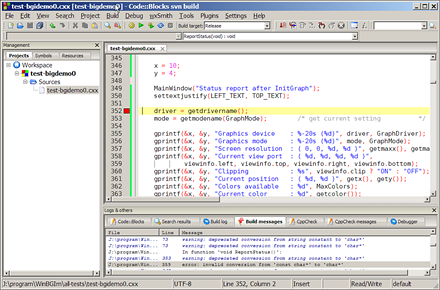
This the new C/C++ Compiler (IDE) for Windows 7 and 8 

"CodeBlocks"


 This is the name of the software.

You can download CodeBlocks from here

Download


For Any other help Contact us on our FaceBook FanPage


Read More »